Qwiktest student feedback
Hear from every student, right after the exam.
Qwiktest student feedback asks every student to rate the exam the moment they submit, with one tap on a face, optional chips and a comment, and shows the answers on your dashboard: average rating, happy students, a daily trend, what to fix in your test versus the exam app, every test from lowest rated, and every comment.
Know how every exam went, without asking.
Last updated
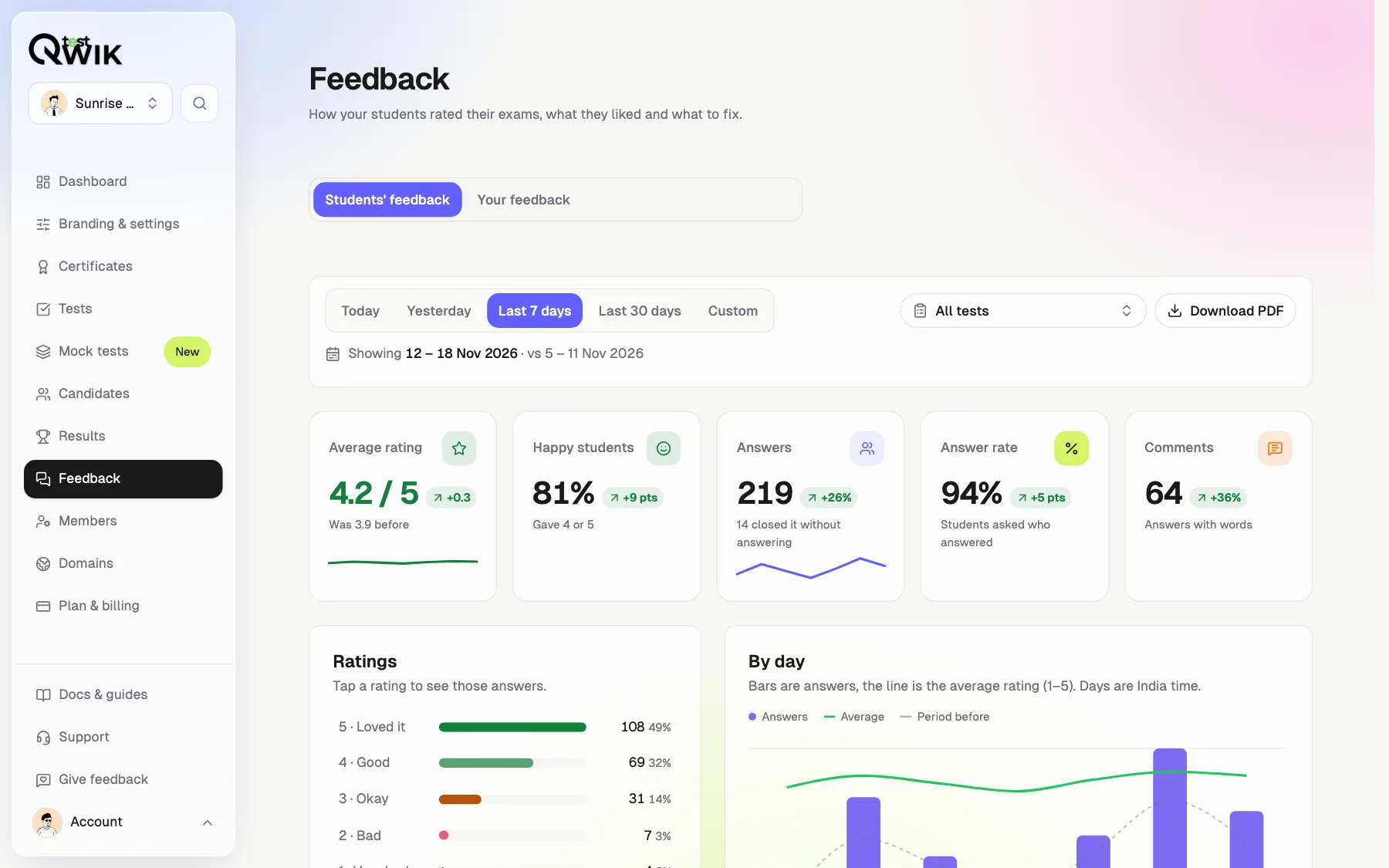
Student feedback at a glance
- Asked
- Right after submit, one tap
- Students answer
- A face from 1 to 5, chips and a comment
- Where
- Feedback in your dashboard, and on each test's results
- Split
- About your test, or about the exam app
- Dates
- Today, yesterday, 7 or 30 days, or any range
- Every Monday
- Last week's numbers by email
- Plans
- Starter, Pro, Business and Enterprise
Students rate the exam in one tap
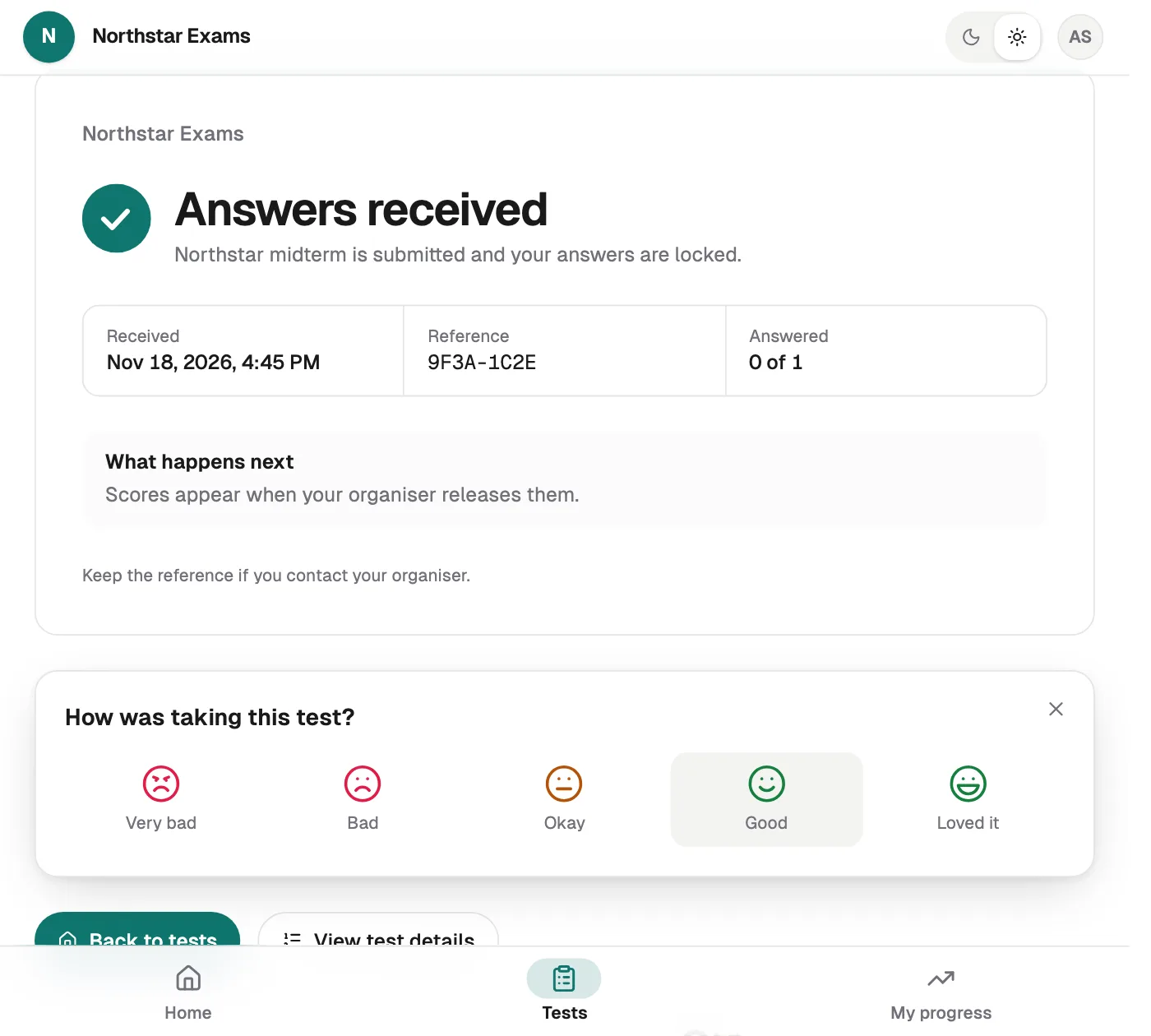
Right after submit
A small card on the result page. Never during the exam.
One tap is enough
A face from Very bad to Loved it. Chips and a comment are optional.
Asked once
Never more than once a visit, and never on the sample test.
Every answer on your dashboard
The numbers
Average rating, happy students, answers and answer rate, against the period before.
When it came in
By hour for today, by day for longer ranges.
New today
The Feedback tab counts new answers until you open it.
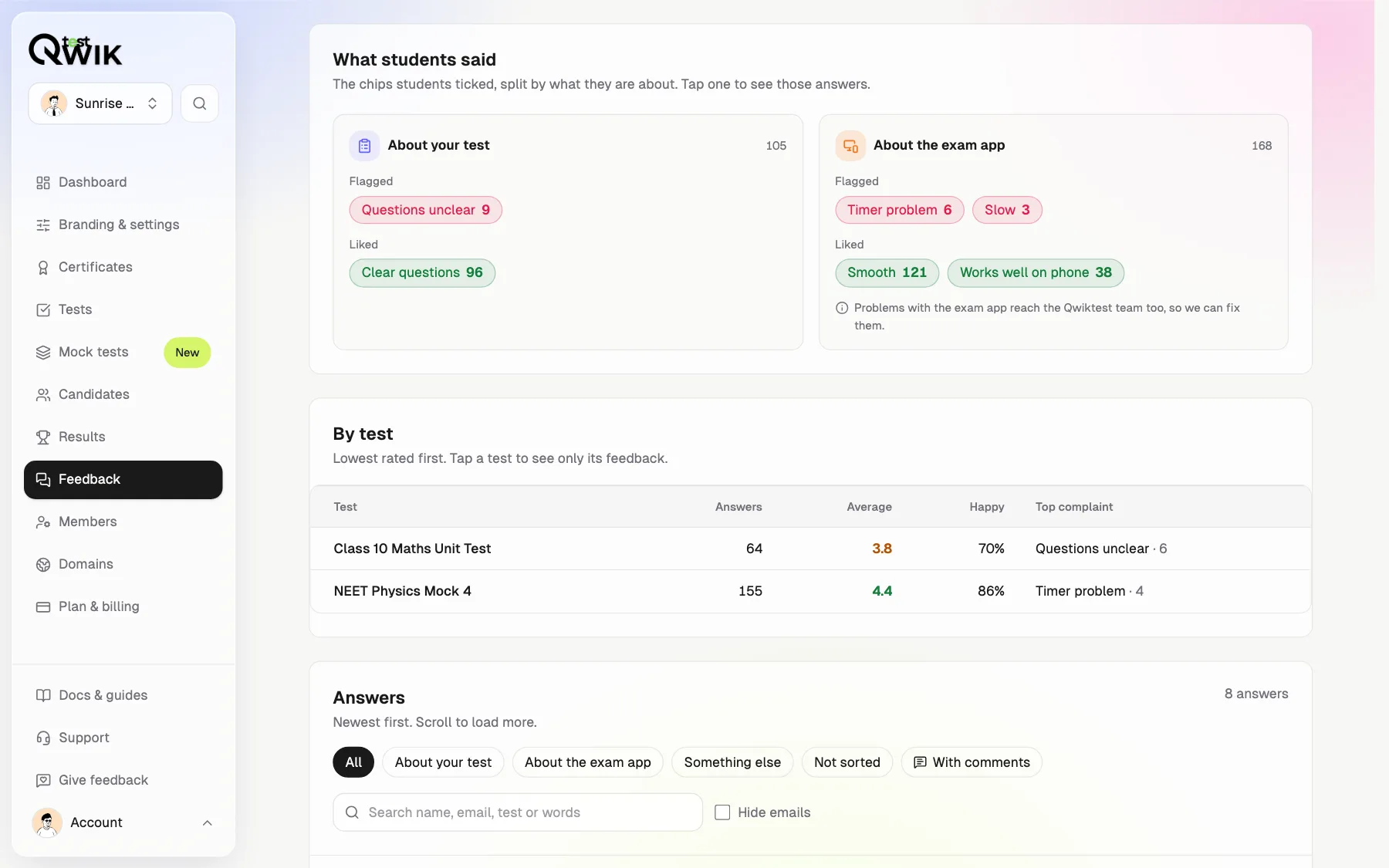
Know what to fix: your test, or the exam app
“Questions unclear” is about your test. A timer or phone problem is about the exam app, and reaches the Qwiktest team too. Tests are listed lowest rated first, with each one's top complaint.
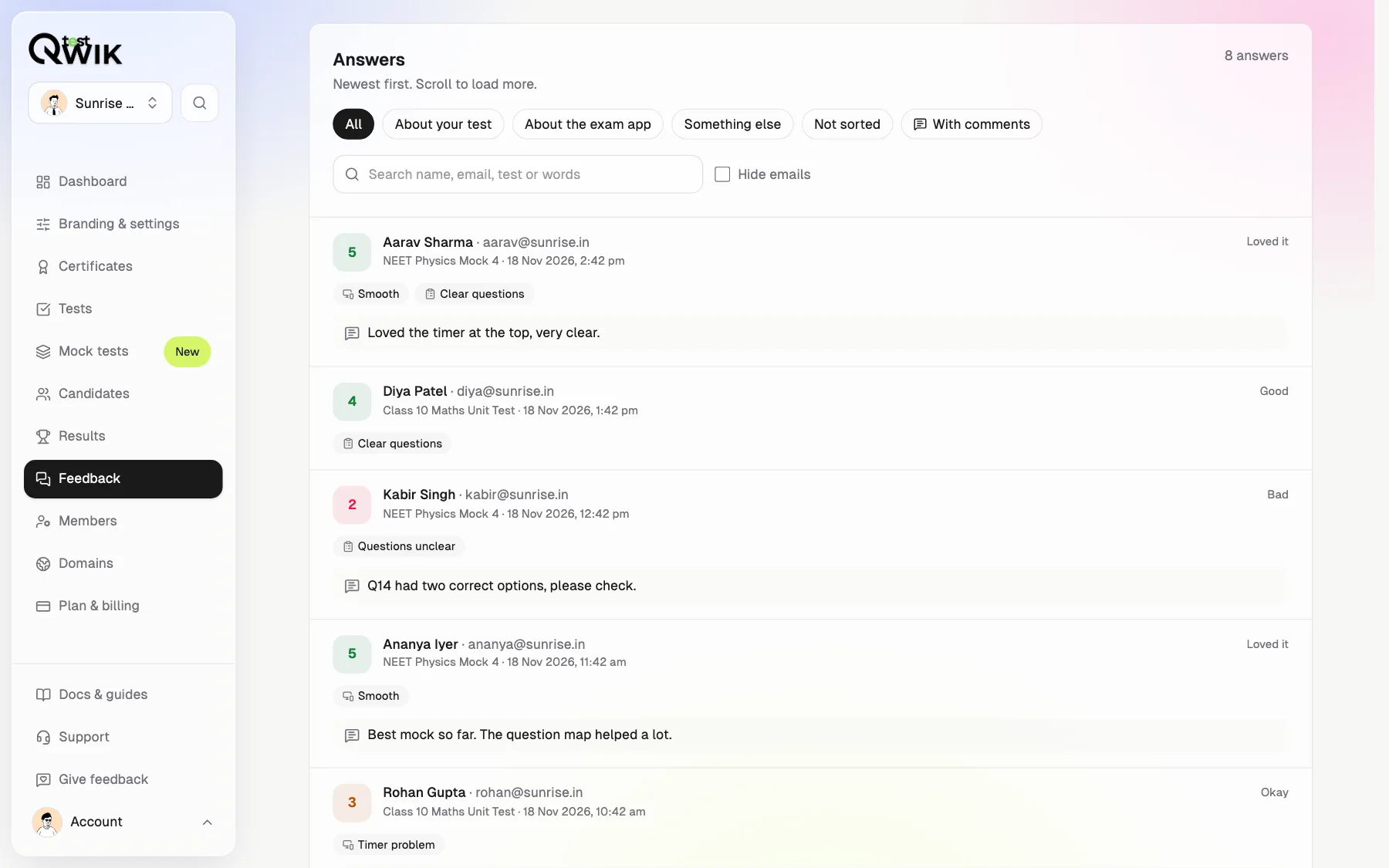
Read every comment
Filter in a tap
By rating, by topic, by test, or only answers with words.
Search
A student's name, email, a test or a word they used.
Share it
Download the report as a PDF, with emails hidden if you like.
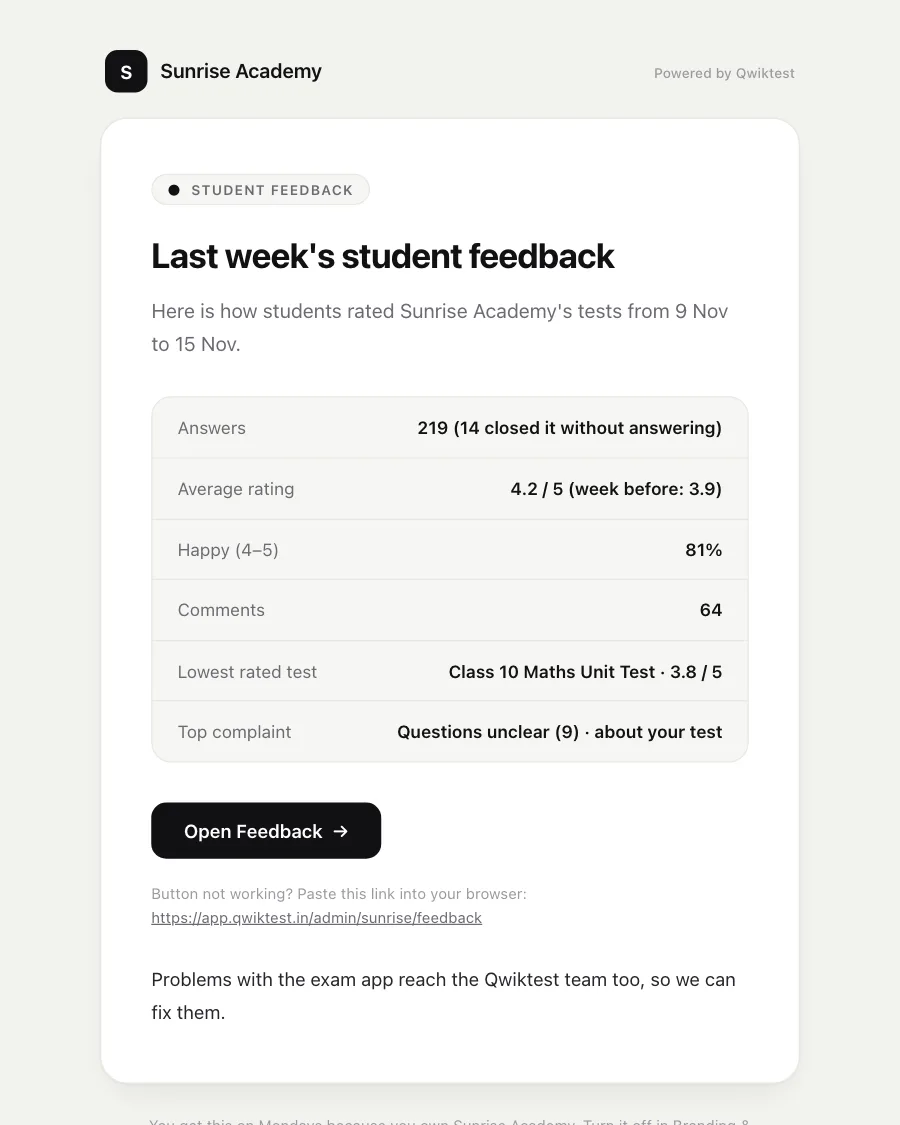
A summary every Monday
At 9 am India time the workspace owner gets last week's average, happy students, comments, the lowest-rated test and the top complaint. Quiet weeks send nothing. Turn it off in Branding & settings.
Which plans include it
- Free
- Students are asked. You see how many answered; upgrade to read them.
- Starter
- The full Feedback page, each test's Feedback tab and the Monday email.
- Pro and Business
- Everything in Starter.
- Enterprise
- Everything in Starter, with custom limits.
How to see student feedback on your online tests
Run a test
Students are asked how it went right after they submit. Nothing to set up.
Open Feedback
In the sidebar on a laptop, or the bottom bar on a phone.
Pick days or a test
Today, yesterday, 7 or 30 days, a custom range, or one test.
Act on it
Fix the questions students flag, and download the PDF to share.
Student feedback questions
How do I get feedback from students after an online test?
Nothing to set up. Right after a student submits a Qwiktest exam, the result page asks how the test went: one tap on a face from 1 to 5, then optional chips and a comment. The answers show on your Feedback page and on each test's Feedback tab.
Are students asked during the exam?
No. The question only appears on the result page after they submit, at most once a visit, and never on the sample test. Answering is optional and never changes their score.
How is feedback about my test told apart from feedback about Qwiktest?
Chips sort themselves: “Questions unclear” and “Clear questions” are about your test; timer, speed, sign-in, phone and crash chips are about the exam app and also reach the Qwiktest team. Nothing is hidden from you.
Can I see feedback for one test?
Yes. Pick the test on the Feedback page, or open the test's results and choose the Feedback tab. Tests are also listed lowest rated first with each one's top complaint.
Can I see students' names with their comments?
Yes, with their email. Tick Hide emails to hide them on screen and in the PDF you download.
Who in my team can see student feedback?
Owners, admins and editors. Viewers only see their own feedback to Qwiktest.
What is the Monday email?
Every Monday at 9 am India time the workspace owner gets last week's student feedback in one email, with the lowest-rated test and the top complaint. Quiet weeks send nothing, and Branding & settings → Email turns it off.
Which plans include student feedback?
Starter, Pro, Business and Enterprise. On Free, students are still asked and you see how many answered; upgrading shows every answer.